03_How to Identify Videos Included in the Migration
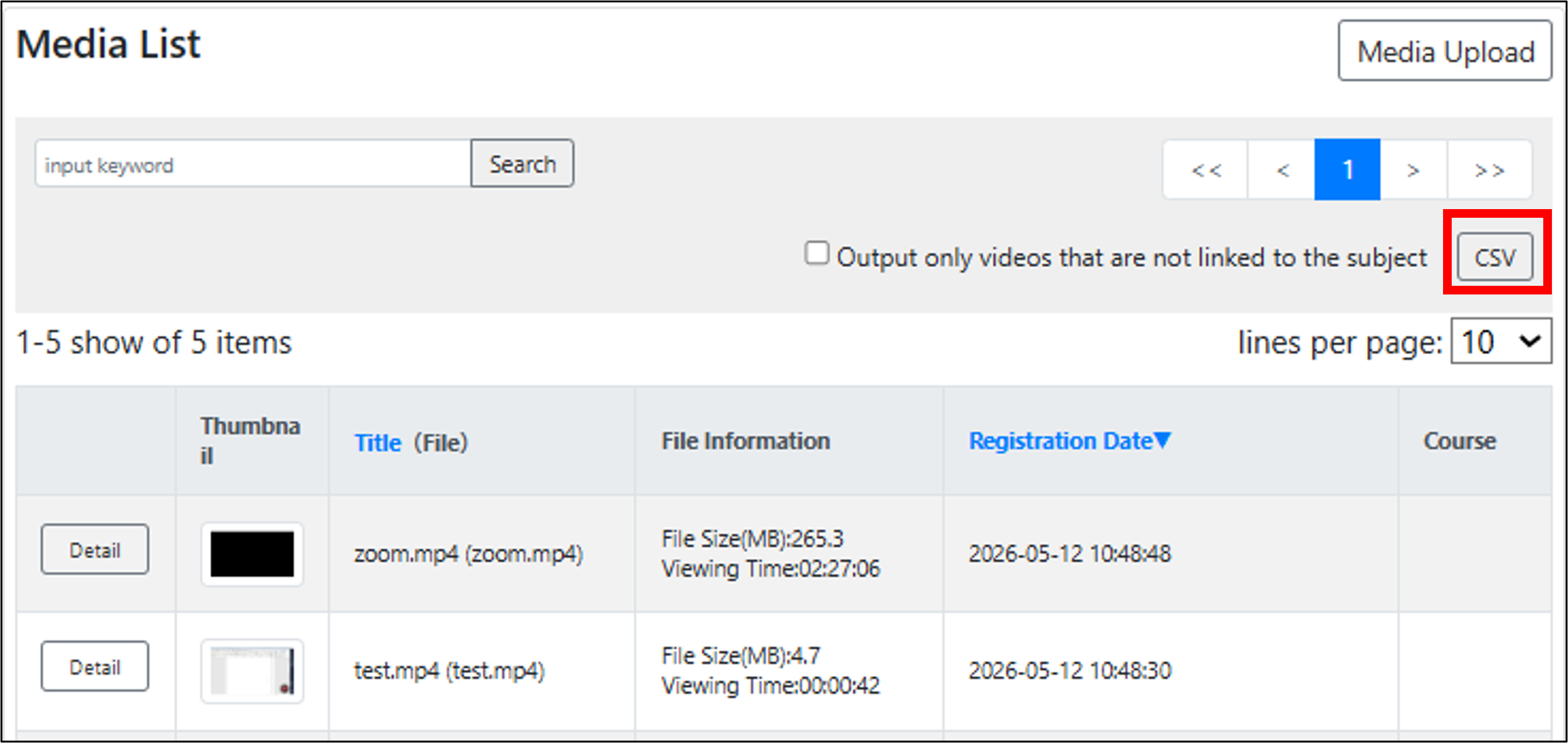
If you would like to check which videos are included in the migration, please use the Media List page.
The Media List page can be accessed from the banner at the top of any course page.
On the Media List page, you can view the following information for each video file:
- Upload date and time
- Courses in which the video is used
If you have a large number of video files and it is difficult to review them on the Video List page, you can download the information as a CSV file for easier review.
If you would like a video that is currently excluded from the migration to be included, please delete the video and then upload it again. Once re-uploaded, the upload date will be updated, and the video will be included in the migration.
Last Updated on 2026-07-07

