06-01.Usage restrictions (Precondition setting)
Course content can be created with a variety of resources or activities. The setting items are different depending on the function, but here we explain the common setting items.
Usage restrictions
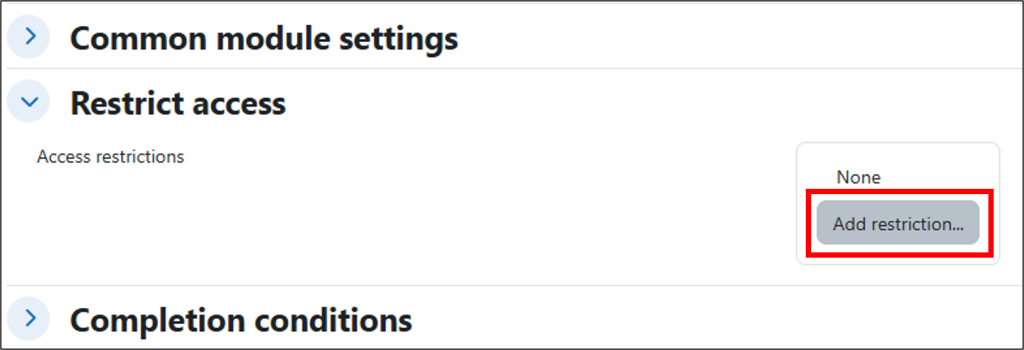
You can set access restrictions by [Add restriction…]. Items for access restrictions are follows.
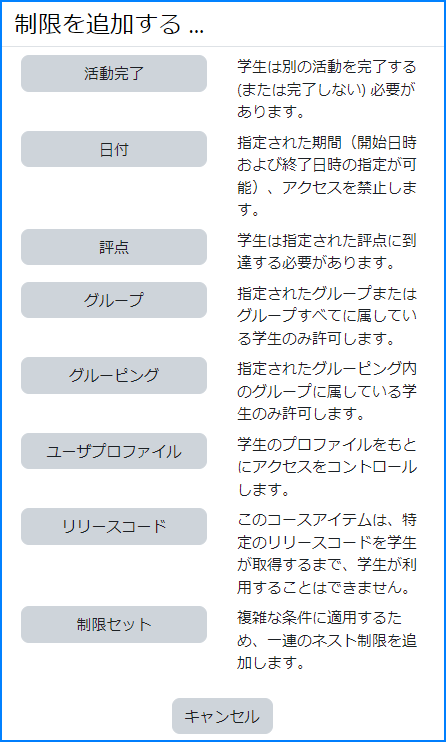
Activity completion: Permit access if students complete (or not complete) another activity with “Activity completion” set.
Date: Prevent access until (or from) a specified date and time.
Grade: Permit access of students who achieved (or not achieved) a specified grade may be accessible.
Group: Permit access of users who belong to a specified group may be accessible.
Restriction set: Add a set of nested restrictions to apply complex logic.
The diagram below shows the display screen when ‘Group’ is set.
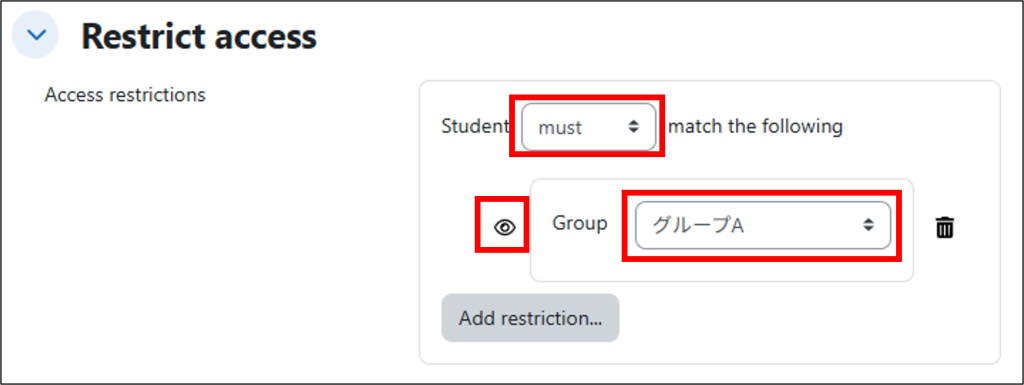
Must match (must not match): conditions can be set.
Also, when setting multiple conditions, select “all” or “any”. (e.g., to make available to Group A or Group B, select “any of them.”)
‘Eye’ icon: in the case shown above (assuming ‘Must match’ is selected), only Group A is shown as available to all students. If you click on the ‘eye’ icon, the icon will be shaded to show that it is only available to Group A (and will be hidden from other students).
View for Students
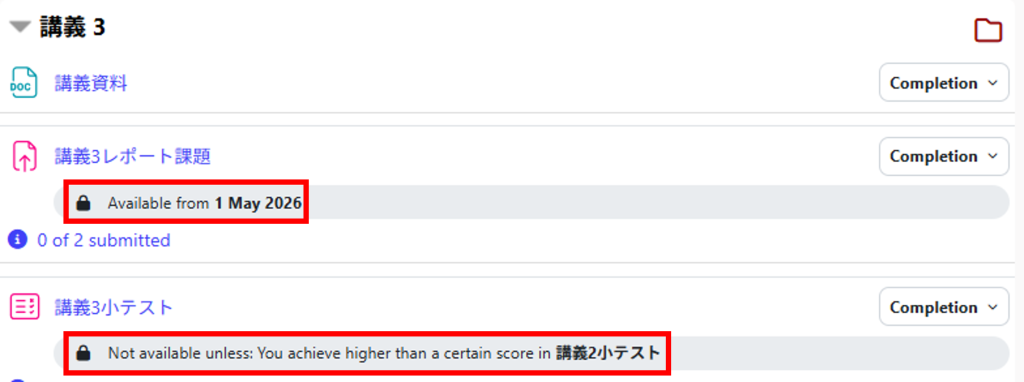
If students do not meet the conditions for content usage restrictions, the following will be displayed.
- Note
- When date‑based availability restrictions are set at the section level, the default settings cause the section to be displayed differently for instructors and students.
From the student’s perspective, the section is shown only during the availability period, so please be aware of this behavior.
If you want the section to remain visible outside the availability period, you need to edit the course settings. - [Instructor’s View]
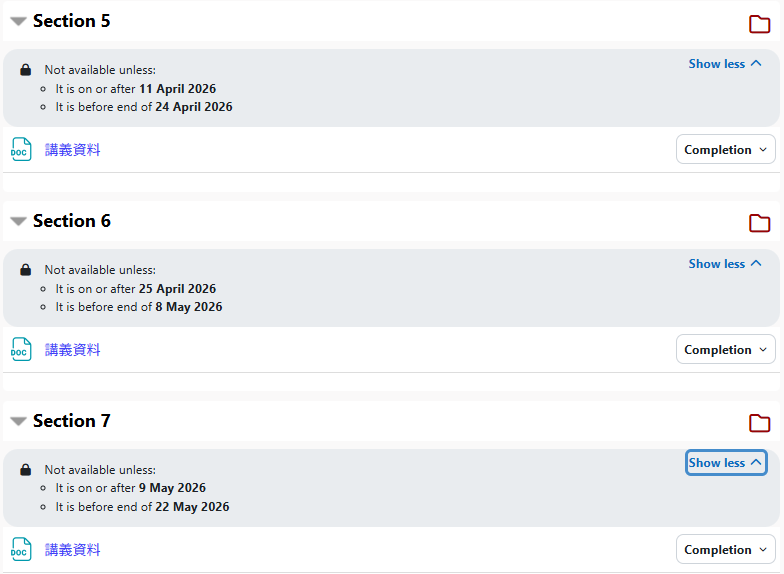
[Change the Course Settings]
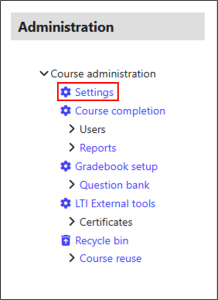
Select “Settings” from the “Administration” block.
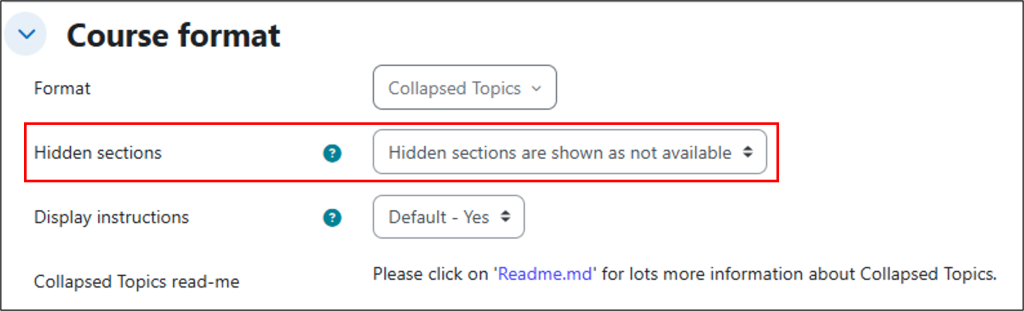
Under “Course format”, locate “Hidden sections”.
Select “Hidden sections are shown as not available”, and then save the changes.
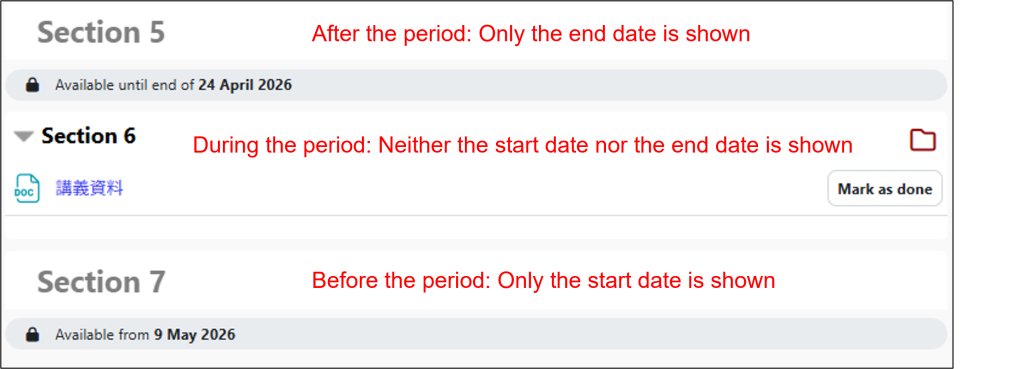
[Students’ View (when course settings have been changed)]
The section title will be displayed, but the content within the section will not be visible.
- Note
- The start and end dates set in the “Usage restrictions” section will not be registered in the student’s calendar.
Please be careful when setting deadlines for quizzes, etc. at the end date of “Usage restrictions”. - If the deadline is the end date and time set in “Availability” of assignments or is the end date and time set in “Timing” of quizzes and questionnaires, it will be registered in the student’s calendar.
- Please note that if you set the “Restricted Use” option, you will not be able to check the “Feedback Comment File” for students.
Last Updated on 2026-04-30

